Friday, July 31, 2015

Welcome Back to Technology

I have been taking a very long siesta.  Yes I mean nap.  This is the first year that I can remember not trying to get back on my "school sleep schedule" in a long time.  By this time in the year I am back to getting up at 6 am and sleeping at 10 pm.  This year I am just too tired.  I have been napping all day and staying up all night.  Yes I will suffer in about 8 days, but this year I am trying to stretch my summer break more than normal.  I have truly been super lazy.  Honestly it has been great I find that I am not too stressed out yet and I am just living on faith that all will be okay.


Now next week I will need to start getting my classroom ready and with that I will need to start thinking about how my one to one classroom will change the way I teach.  I figured I would start with a nice introduction project.  I want my students to understand my expectations of using their Chromebooks in my classroom and get to know them a little better.  I have decided to do this through some video creation.  My students will not have to stand in front of the class or play a silly ice breaker game (which I personally can't stand so I hate forcing it on others!).  There are so many video options to choose from so here are a few ideas.

Screencasify

This is a google extension that will allow your students to create screen-casts without having to download or open a program.  It is so simple to use.  When you load it on Chrome there will be a little image of a film tape on their ominbar.  All your students have to do is click and they can make a presentation using a power point/google slides presentation they create.  Give your students a day or two to create the presentation and screencast.  Then have them share it to the class for students to peruse or watch them all as a whole class. 

Here is a tutorial to help you get started!


Powtoon

I have talked about using powtoon as a teacher before.  I think it is so fun and free!!!  Students could create a cartoon by creating a character and having that character answer some questions you provide.  I am excited to try this out with my sixth graders this year.  I think they will have so much fun with this.  Check out this tutorial to help you get started!


Google Story Builder

My last suggestion is Google Story Builder.  I can't describe it I just have to show you how cute this can be!


Okay, Okay I know that was how to use it in math class, but wouldn't it be fun if we had our students reflect on their educational experience so far and tell us a story of what they have loved and what they have hated?  You could also just have them write about the funniest moment in their life as an introduction.  I mean come up with one thing you would like to learn about them and have them share a story.  Here is a little tutorial to help you get started.  


There are just a few technology tools that you can use to change up the way you introduce yourself to the classroom.  Think of the possibilities... You could even make a video introducing all of your classroom expectation so that your student are not hearing just another teacher go on and on about keeping their hands to themselves.  Really be open minded and expand yourself.  I know I have a week to make my own intro video.  What will your look like???  Feel free to share below in the comments section.  

Tuesday, July 7, 2015

Chromebook Palooza!

If you have been following along with my blog then you know I was seriously lacking some technology in my classroom at the end of the last school year.  If you need a refresher then click here to get a refresher on my plight!  So today is a momentous day as a teacher.  Today I get my loaner Chromebook BECAUSE all of my students will have one this next school year!!!!  Can you say...


So my next few entries might be a little focused on Chromebooks, but do not fear if you do not have these in your own classroom.  A lot of the research I have found on Chromebooks actually just talks about how to use google apps and websites more frequently in the classroom.  All of the things that I will talk about could easily be translated to laptops and desktops.  If you are using google apps for education then this is the place for you to check in with over the next few weeks. 

What is a Chromebook?

A Chromebook looks like a mini laptop.  However, it runs on the Chrome OS (Operating System).  This means that if issues pop up in class you will need to treat it a little differently.  I am working on collecting more information on this and I am planning on doing a mini post with some resources.  Chromebooks are made by a variety of computer companies, even Samsung makes a Chromebook.  Even if it is made by a different company they all have the same OS so no need to worry that will change your troubleshooting.

Also, Chromebooks are meant to just connect to the internet.  This means that all work done on a Chromebook will need to be kept in "the cloud".  This should be fairly easy if you are using google drive in your classroom.  The Microsoft suite also is online now and you could use that if you are not using google apps for education yet.  

Here is a little video to help you get started!


Chromebook Resources So Far...

I have been looking through some websites to get some ideas on how to use my Chromebooks in the classroom.  Here are a few site I have been looking over:


Now I just need to take a few of these start making my google classroom for the next school year.  As I explore for my own classroom I will share the knowledge that I have gained along the way.  

Do you have Chromebooks in your classroom?  What are your favorite ways to use them?  Let me know in the comments below.  

Until Next Time...

Wednesday, June 24, 2015

"Site"seeing through Google

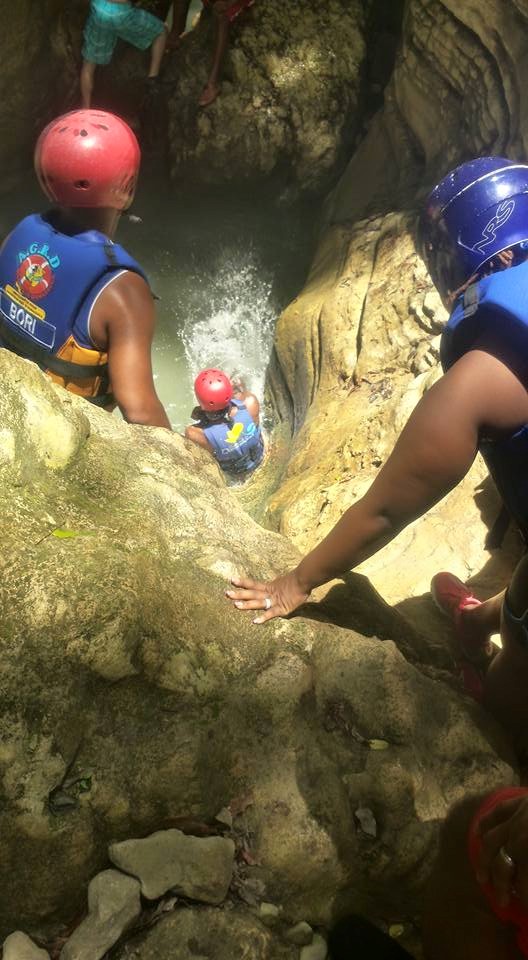
I just got back from an amazing vacation to the Dominican Republic with my mother.  It was a special graduation gift for earning my master's degree.  It was relaxing and so fun to learn about the culture and push myself in new and exciting ways.  The most exciting part was climbing up a mountain just to fall down the waterfalls.  I found this activity has so many parallels in our lives as teachers.  When it comes to trying out new things I feel like it is an uphill battle.  Just like with new technology or the latest teaching strategy, or new curriculum.  The mountain is daunting and scary.  Sometimes we feel like we can make it, but there are ALWAYS other teachers, parent, students, family and friends that are there to back us up.  They are willing to slow down with us and coach us on.  Well, I felt like I would die climbing the mountain in the DR, but my mom and our guide stopped with me and kept coaching me on.  Even in tears and worrying about how I was holding everyone in the group back they kept coaching me.  When I made it to the top is was amazing and the cool water felt so great.  Now it is time to go it alone and take the plunge.  When you are trying on your own it looks so scary.


All you can think is "holy cow"!  You just have to think about all of your preparation and coaching,  and some how you push yourself to jump and when you look back it is not as bad as it seemed.  


At the end, you made it and are a better person and have had a great effect on those around you.  


Now I know that you are all wondering why I am sharing my crazing waterfall sliding adventure, but I found that my life as a teacher attempting to us technology is a lot like this scenario.  It is scary to try new things, but it all will work out.

Google Site Creation

This week's challenge is a little more daunting than normal.  We have been working on climbing to the top by practicing our google skills.  Now we are going to apply it all by creating a Google Site!  Don't be afraid, because now that we are on the top we just need to give the confidence to take the plunge.  Here is a video to help you get started.


There are a million different add-ons for your site.  You can add a calendar, mini-blog, checklists, and I could go on and on.  However, that might bore you so here are a few sites I found that can help guide you into whatever you are interested in adding.


There really are a billion (note how this number keeps going higher and higher) tools to help you on your way to creating a classroom website.  I created one recently for my debate and forensics team for next year and I am very excited to share it with my parents.  It will be one way that I can reach out to everyone interested in our team at once.  No more crazy emails hoping I have everyone on the email list!

I can tell you that Google has created an easy way to create a website.  I figured out the majority of it by taking the time to tinker around and the questions I did have were easily answered by googling my question.  You just need to take the time to explore and don't stress about the jump.  Remember when you are done you will wonder why you were holding back on creating a classroom site this whole time.  

Until Next Time...

Friday, June 12, 2015

Snacks and Movies

It is crazy how fast you summer can start to fill up.  I was planning on a lazyish summer, but that is coming to an end.  I have started to prepare for my vacation coming up soon, and the graduation for my Masters degree.  Not to mention I have started planning my sessions for our curriculum camp in July.  Packing, inviting, and planning has exhausted me!  I mean lets me real.  As teachers, we only take off about 3 weeks MAYBE of summer vacation.  I feel like by July I am back into prepping for the new school year mode.  I feel that this cartoon describes a real teacher's summer.


When life gets busy it is always nice to slow down with a little video time and that brings me to this weeks focus.  We are going to talk about youtube and videos in your classroom.  

Youtube

We all know it and love it!  I use youtube frequently in my classroom to help draw my students into my daily lesson or even reteaching a concept my students are struggling with.  I never realized how many tools there are to enhance your Youtube experience.  

First of all, Youtube has a special education channel.  Check it out by clicking HERE!  They have so many videos that are organized by subject and even what level you are teaching.  Imagine not having to go through all of the junk videos to get to the good meaty videos.  I love that this is a tool that Youtube has set up for teachers.  

Also, there are add-ons for your browsers that could make the video watching experience even better.  One of my favorite new extensions is called Turn out the Lights.  It essentially dims everything around the video so it is not as much of a distraction.  You have to check this out!  This is only one of a million ideas of how to use youtube in the classroom.  Check out this google doc with some great ideas on how to use youtube in your classroom.  

Snacktube

If you have been keeping up with my blog then you know I am always looking for a new website to enhance the video experience for my students in the classroom.  I LOVE edpuzzle for adding my own commentary, discussions, and quizzes to videos.  If you are not sure what I am talking about check out my post HERE.  So naturally when I was introduced to another awesome site I just had to share it with you.

Snacktube allows for you to collect a bunch of youtube videos and make a playlist.  It makes a much more student friendly interface.  There are not the distracting ads that would be there on a traditional youtube playlist.  Students could scroll through several videos and choose the one they would like to use or you could force them to watch videos in a specific order.  I would almost call this a video collage.  Check out the website HERE.  Do you have a website that you love to use with videos in your classroom?  If so leave me a comment below!

Until next time...

Wednesday, June 10, 2015

Touring on Google

Hello, friends! I hope your summer is allowing you to be as lazy as I have been.  I just got around to doing my summer kitchen rearrange yesterday.  All of my other days have been lounging with my cats and... that is about it.  I am excited to announce that both of my proposals for my school district's technology symposium have been accepted!  I will soon be sharing some amazing google apps and how to screencast with my fellow educators.  I am super pumped and so are others. I will be setting up both sessions on Google Classroom so if you are interested in getting access to that classroom then send me a quick email and I will get back to you with the code as soon as the class is up and running.
I am really excited about this week, but I discovered Google's Tour Builder!  I am sure we are all aware of Google Earth (if not check out the video below), but this tool combines Google Earth, Youtube videos, and images to create a tour of the world!


Google Tour Builder

Okay, so Google Tour Builder allows for you to create a travel "timeline" and moves around the world, country, or city as you tell a story or give students information through your own description.  To enhance this virtual field trip, you can add videos and images.  The end product is pretty amazing. However, I will warn you that they are transitioning into only the 2D version of this tool because most browsers no longer the support the 3D version (which I think it the best version).  Sadly, Chrome does not support the 3D version anymore IF you have the most current version of Chrome.  I did find a go around for this and that is using Mozilla Firefox browser.  Here is a tutorial to help you get started.


The website also has a ton of tours that are premade and ready to be shared with your class.  If you are wanting to check out one of my own creations here is a link to check it out.  Like I said they look much better using Firefox.  

Classroom Ideas!

The tool really has endless uses.  Here are a few ideas I came up with on my own.  

Science:  Show environments such as the rainforest all around the world. 

Social studies:  Use a "moving" map to show all of the important locations in a culture.

English:  Use it to help inspire students to write about a specific location/time.  

Reading:  Show students that actual locations within the text they are reading.  

Math: Find specific shapes in geography!  

Really the ideas are endless.  Be free and let you mind run wild.  I thinking about using to tool to get to know my students ambitions and where they want to go at the beginning of the year.  

What are some of your ideas for using Google Tour Builder?

Until next time...

Thursday, June 4, 2015

Scheduling though Google Calendar and other Fun Tools

I took a relaxing week off and finished packing my classroom, giving finals, and taking a whirlwind trip to Ohio to celebrate a new high school graduate!  Needless to say, I am exhausted from my week off.  Thank goodness I have about six weeks to rest up before I get back to curriculum fun and preparing for school.

I do have great news!  I have been asked to present at my district technology symposium in July.  I feel super nerdy, but I am sooooo excited.  I submitted two proposals for my presentation and I am just waiting to hear back about my ideas.  I think this image says it all!


Onto this weeks fun!  This week I will be giving a short tutorial on how to use Google Calendar and some reviews of google tools that are available to you!

Google Calendar

Google calendar is a great collaborative tool.  It is easy to use and allows for you to share appointments and calendars with others.  I have put together a presentation to help you set up your own appointment. Click HERE for a short tutorial.

I would also highly suggest that check out some of the labs that are available.  Labs are experiments that google is conducting to see how well they work and how useful they are to others.  HERE is a site with a list of labs available and how to add them to your calendar.  

Other Google Tools

Google+ Hangout


This tool is so cool!  You can used it have a traditional or video chat.  You no long need to have a “meeting” to talk and plan with someone else. You can talk with multiple people at once.  The only downside (and I have not used it for about 9 months) was that it seemed a little glitchy when popping up the large image of who was talking.  Although google is always updating the tools and this might have been cleared up!
Here are a few ideas of how to get started using google hangouts:
This could be used for meeting other students across a larger district.  We could have book discussions across the city.  I could also see district meetings being moved online.  No need to travel across this district to meet with the ELA team.  I could just stay at my desk and attend the meeting.  

Google Body


This tool is so neat to use with a touchscreen.  You can move around the manipulate the body to click on all of the systems.  I did find it difficult to maneuver around the tool to begin with but adjusted after about 5 minutes.  Unless you pay for the more advanced tools I found this tool to be somewhat limiting for teachers and that is primarily why I gave it a 5.  
Here are a few ideas to get you started using google body:
This could be used in a science class to have students fill out a study guide before a test.  I could also see students doing group work to understand how the body is layered and try to think of why certain portions of the body are connected to other portions.  

World Wonders Project

I am really excited about this as a first time social studies teacher next year.  We will be studying ancient civilizations and this tool will be very cool to use to build student interest!  It has an easy to use search bar and gives a variety of options to help narrow down your selections.  There are images and museum exhibits for students and teachers to explore.
Here are a few ideas to help you get started using World Wonders Project:
I would love to use this tool to get my students interested in a new unit we are starting.  I would use it along with an anticipation guide.  I could also see using this for some research about the civilization that students are learning about.  I could assign various aspects of the civilization to groups and using the easy search tools students could create a presentation using the World Wonders project.  
I hope you can use some of the information when thinking ahead to the next school year. What is your favorite google tool and how to you use it in your classroom. I would love to hear your unique spin on all of the great tools google has to offer.

Saturday, May 23, 2015

Directions to get to Google Drive (get it drive...directions...)

We are officially on our final week of school! Yahoo!  We made it through another 178 days of school!  Okay, I will now stop using so many exclamation points because at this point if you are not excited then I don't know what to do.  I am feeling so exhausted at this point in the year, but I can see the light at the end of the tunnel and this inspires me to keep chugging along.  I feel like this truly illustrates my feelings about the school year.


Last week I told you that all of my students were going to have Chromebooks next year.  Then this week our school received an email saying they were going to start limiting what we can keep in our home drive and that we needed to start saving and uploading our documents, pictures, and videos to google drive.  I am thinking a review might be needed for a few of my teacher friends and those who just want to start using their google tools more!

Google Drive

If your school district is a "Google District" then you have unlimited space in Google Drive.  Anything you upload to Google Drive you can share with anyone and if you make a folder and share the whole folder with your team then anything you add to that folder will be shared with the same people.  My team recently used this when planning for MAP block schedule and everything I created/uploaded was automatically shared with my ELA team for all to see and use!  Let get onto a tutorial to help you out with this!


This video only uploads a document and shows you how to share one document, but like I said before you can upload videos and pictures.  Take advantage of all this FREE space for teachers!  

Here are a few links to some resources on how you can use Google Drive in your classroom.  

The Paperless Classroom with Google Docs:  This is a 13-page google document describing anything you might need to know to create a paperless classroom.  

38 Ideas to use Google Drive in Class:  This site has several ideas on how to use google drive.  This is a great place to get your creative juices flowing!

The Teacher's Guide to using Google Drive in the Classroom: This is another great beginners guide with some fun app tips thrown in!

I hope this information helps you get started with Google Drive and its amazing uses in the classroom. 

What is your favorite use for Google Drive in your classroom?  

Until next time...

Saturday, May 16, 2015

Search it up... Google style!!!

Last night was a celebration at my house... the end of MAP testing!!!! That is right.  No more block scheduling.  No more missing out on my plan time.  No more limitations on technology!

As I am sure you can tell I am super excited.  I have already reserved my laptops for post tests and reflections using my favorite... Google Forms.  Not only are we going to have the technology back but we received exciting news that next year ALL of our 6th graders will have their own Chromebook.  It is like a sudden flood of techmazingness (a word that I just created for use when something amazing happening with technology).  I just feel like we should all take a moment to celebrate for a moment something amazing that has happened this school year before it is over.  Here is a little video to help us get started.


Now that we are thinking about how amazing we are as teachers lets get into the good stuff!

Google Searches

I know we have talked before about how amazing Google searches can be when used properly and I just want to review some of the advanced search options.  Here is a little video to help you refresh on all the amazing ways to search on Google.  


I love reviewing these easy techniques to help me with my google searches!  Most people forget all of the neat features that are available for google searches.  I know I have wasted several hours searching for classroom ideas or articles and I could have narrowed down things much more quickly if I had only remembered a few of these tips.  

Google Custom Search

This is by far the most exciting tool that I have ever encountered!  I know that with little 6th graders, I do not want them searching for topics and seeing everything that can pop up will pop up.  This little tool is something I will be using next year when my students are working on their research project.  Google will allow you to create a custom search engine using site that only you pre-approve for your students.  I used to make a list of links for them to click and explore to find what they want, but with this tool I can just add in all of my website and share the ONE link to my custom search engine and it will only allow for them to search that area.  Here check out my own search engine on nutrition!


Do you have a favorite tip or trick when doing your own google searches?  Leave it in the comments below! 

Until next time...

Sunday, May 3, 2015

Back to Basics-Chrome Style

When unable to use technology with your students either due to restrictions (have I mentioned how sad I am about not being able to have access to technology for FOUR whole weeks in my classroom???) or because you are on a break from the kiddos it is always good to go back and check out the basics of what you are using and see if you can make anything better or easier on yourself.  For this post I want to focus on the basics of your web browser.  I personally love using Google Chrome and that will be what I talk about today.

I wasn't a Chromlever (yeah I just merged Chrome and Believer) until our school district became a google district.  All of a sudden I was forced to leave my small Internet Explorer world behind and accept that I needed to move on.  There are so many basics that I can not even begin to go over.  I have found a video that outlines the best parts of switching to Google Chrome just for you!

I just love the inspirational music in this video!


Google Apps

Another benefit of using Google Chrome is all of the apps that are available for you to use.  Some of the websites I have directed you to before are also in the app store!  Here are a few of my favorites and one that I want to try out next year!

Padlet

Padlet is like a digital cork board.  You can post websites and sticky notes for students to look at and they can even add the class board.   I have used this before as a visual tool for research projects.  I started the board by adding some videos and articles about inventions.  As students explored the internet on their own and found their own resources they added links to those resources or added sticky notes about various inventions.  

EdPuzzle

EdPuzzle is a website that allows you to upload videos from various online websites and add to them.  It would be great to use to flip your classroom.  You could add voice=overs, discussion questions, comments, and quiz questions.  I have used this when creating tiered lessons for my classroom.  My students start off their lesson watching a video at their level and then start on an assignment that is located in Google Classroom.  

Class Chart

This app allows you to chart behaviors in the classroom and then use those to organize where your students are sitting.  I have not yet used this, but I am always trying to track my students behaviors and place them in a seat that is proactive instead of reactive.  

I have not used this one but I am super excited to try it out next school year!!!


There are so many options when it come to customizing your Google Chrome web browser.  I highly suggest you make sure you have a google account and start exploring today.  

Until Next Time..

Saturday, May 2, 2015

Google Smoogle - Searching and More!

Update- Working in a classroom with limited technology sucks!  I am currently on week two of no classroom technology.  It makes my day feel like it will never end.  It really has me thinking about the worlds current addiction to technology.  I have realized I am an addicted.  I need a support group to help me though the next two weeks of class without the use of technology.


This week I was so desperate that I went old school technology with my students.  We were working in stations to look at various components of a debate and I made a listening station.  You know the kind we had in kindergarten with the follow along books.  An surprisingly after showing the kids how to work a CD player they had a blast with it.  Being without technology has helped my student understand just how "vintage" their teacher is...


Google Search for Students


If you have been keeping up with my blog then you know that my students are currently doing some research for a debate they will be participating in soon.  IF we had technology I would be having them use the internet to research the topic of fast food in schools.  I recently had my library (have I ever mentioned how awesome she is???)  present how to do google searches and I learned stuff from her.  I thought I was an expert searcher, but she is the true genius.  There is more to google than typing in some keywords and clicking search.  You should check out some of these hint on how to do a REAL google search!


My favorite eye opening tool about google searches is the grade level search tool.  I usually differentiate my instruction based on students reading level and I used to choose and article and then go though and modify it as needed before printing.  Now it is two clicks and I have grade level appropriate texts!

This is another cool way of doing google searches that I learning while getting my bachelors degree.


I typically use this type of searching when trying to quickly look something up during class time.  It is just some quick hints on how to get a better result faster.

Google Classroom

It is no secret that I love Google Classroom.  Most school districts are becoming "Google Districts"  where they are using all of the lovely Google Apps.  Google Classroom is one of those apps.  If your student have gmail accounts created by the district then creating a classroom and inviting students is easier than ever!  I have made a screen-cast to help guide you through how to use it.  This one actually have audio explanation due to the fact that I spent some money updating my technology sense the last headset died on me... :( 


I hope you enjoy the screen-cast and are thinking ahead to the new school year that is only 3 months away (for my midwest audience).

Until next time...

Sunday, April 26, 2015

Pinsperation, Symbaloo, and Socializing


I would love to tell you some humorous technology story, but I don't have one this week.  I made it through my first week of "no technology in the classroom"  MAP week and only had slight withdrawal symptoms.  I had a headache each day, the shakes, a little wooziness.  Okay, I might be exaggerating a little, but I did have a headache A LOT, but I contribute that to the noise and overall crazy level my room reached occasionally.  Trying to keep 25-30 middle school kids cooped up in a classroom for over two hours at a time (without technology mind you) is like trying to train cats to perform in the circus.  There is a lot of pain trying to keep kids at that age level motivated for long periods of time and I am truly blessed to work with such a great ELA team!  We are going old school creative with them and it is such a fun eye opening experience.

How I feel after the first hour with my middle school kids! "Lets all calm down it will be okay..."
Now onto the the good stuff.  I think it is only fitting that we talk about how my team has come up with some of the great ideas we are currently using in our classrooms.  Let talking about social inspiration!  How can we as teachers use social media sites to create more interesting lessons for our classroom?  

Pinterest

I am a self proclaimed Pinterest addict.  I use it for EVERYTHING!  Something breaks in my house...Pinterest.  I need a new crafty thing to work on... Pinterest.  My living room is looking bland... Pinterest.  So why not use it for classroom activities, setting up my room, tracking behaviors,  or organizing my curriculum?  I currently think I have five pin boards dedicated to being a teacher.  You can click here to check out my boards.  I love Pinterest because I am a visual person. I like to see images to peak my interest.  That is all the Pinterest is a bunch of interesting pictures that if you click on them it leads you to a website with direction on how to do the fun activity or create what is in the picture.  There is so much potential for using it to prepare for your classroom and during class time.  Look at this cool infographic for more ideas.

If it is hard to read click on this caption to see the full size infographic!
If you are new to Pinterest it is really easy to catch on!  Here is a video to help you get started.  It is so easy my great aunt can use it.  There really is not an excuse to not be using Pinterest for your classroom or personal purposes.  


Symbaloo

I was actually introduced to Symbaloo by the awesome librarian at my school.  I was looking at doing a research project for my students, but I wanted to make it more visual than a the list of links I typically use for them.  Symbaloo  is a bookmarking website that is much more visual for kids.  You can choose a image from the site to help identify what is in the article or you can choose a symbol and background color to help students understand what the link will lead you too.  

My ELA team is currently planning for kids to research for an end of the year debate they will participate in.  We are using a symbaloo site to collect articles the kids can use.  It is an easy way to share what we have found with each other before we start printing articles.  (remember I have have my kids use it this time during to our tech blackout!)  Typically I would just share the link of my webmix with the kids and they could explore the websites I found for themselves.  Here is the link for the symbaloo education website >>>Click Here<<<.  They have several video on this site for you to check out before you sign up.  

Social Media Debate

I feel like at least once a month I heard about some teacher abusing social media when it comes to interacting with students.  My district has a "no social media interaction"  policy along with Missouri's law against teachers being friends with students over social media that prohibits even thoughts of connecting with students over social media.  I know we are not all bad and the few have ruined it for the many, but I am personally not one to want to meet with my kids over social media.  Some teachers argue that is gives a safe space to help students out, but shouldn't our classrooms be created to be that safe place?  I have several students talk about difficulties in their lives and it does not require for us to do that online in any way.  I has have students email me if they are feeling too uncomfortable to talk about it.  I feel that there are many other avenues that are more secure for students to learn and talk to me other than social media.  

This is just my opinion, if you have found a way to balance the teacher/personal social media juggle then kuddos to you!  It is personally just not for me.  I challenge you to think deeply about your opinion about social media.  It is not something that is going away and we as teachers need to be comfortable with our opinion.  Do a little research and figure out what works best with you and your classroom.  I am going to leave you with a little inforgraphic I found in my research.  

Click here for the link to the larger version!
Feel free to leave your thoughts below in the comments section.  I am always excited to see how others are feeling about conversational ideas.  Who knows maybe you can be the one to change my mind.  

Until next time...

Saturday, April 18, 2015

Techie Teacher Tools-For those with Little Tech

This week my school had to say farewell to the majority of of our techie tools.  No more laptop carts, video streaming, or computer labs... For four straight weeks we will all be with out amazing websites and the motivation that comes with them... Sigh... I can't describe the despair this new computerized state testing is causing many teachers right now.  One day we will have enough technology in our schools and will not have to give up all the fun while testing is going on in the school.  But for now farewell my beloved technology.


Although my students will not have individual laptops for the next four weeks I still have my mine.  I am limited slightly.  We have been asked to avoid streaming videos and music to help minimize the chance that our wifi will fail in the middle of the test.  So I have to strategically plan lessons that challenge the use of my smart board and honestly myself.  Not only do I lack my typical access to technology, but I have to now plan for classes of varying lengths. One reading class is 90 minutes and the next is 130 minutes.  I know I am not alone when facing these issues so this post is dedicated to helping those who have to plan with little technology in their classroom.

Step One:  The Planning Portion

The first step to using the limited technology is to collaborate with others and make a plan.  Now I know you are thinking that you always make lesson plans, but by talking over what you want to achieve with others you can get more done!

First thing I would suggest is keeping notes and using a space that will help you organize a brain storm session with your colleagues.  A great resource is called Evernote.  I love this website/app and it is one I use for personal projects.  One great feature is that if you have multiple people working on that same concept then you can share it with all of those people and work together from the same note.  You can also insert pictures into your notes to help others see your vision for your plan.  Here is a quick tutorial on how to use the online version.


Now that you have brainstormed ideas you can get online and use an online plan book to share you plans so that you can divide and conqueror without too much stress!  My personal favorite is planbook.com.  Now I am going to be upfront it does cost $12.00 a year, but it is well worth the dollar a month if you do department or even team planning.  The reason why is so that you can share your lessons with the teachers around you and you will not have to retype them into your own book.  You can also attach all the files and links needed for the assignment and they are shared along with the lesson.  Planbook has an excellent youtube channel with tutorials on everything click >>>> HERE<<<<!  These are just a few images of what you planbook could look like, but you can really set it up however you would like to set it up!


 This is my own personal plan book.  I also have my English class below the reading and during debate season I include my plans for practice too!


I find that every year I tinker with the website I find even more cool tools they have added!  So please check it out I think they even will give you a free trial period.

Step Two:  Finding Great One Computer or Smartboard Lessons

So you only have your teacher computer to use.  There are several idea you can do to incorporate student interaction with your computer/board.  

One place I would look at for lesson ideas and templates is the smartboard exchange.  I was looking to create some vocabulary games and review some general concepts and I found so many templates on this website and then could quickly make a few fun games to keep in a folder.  If for any reason I have some extra time I now have content related activities to use with my students.  Click HERE to check out the website.


I am also using my smartboard when I set up stations for my students to learn about debate.  I will be downloading videos from youtube using Keepvid.  This allows you to download videos and not stream them from online.  I always stream them, but because of my restriction I will be using this for the next few weeks for various assignments.  This website will help me hook my students to lesson, plan socratic seminars, and use them while my students work in stations.  

Another tool if you are all for brain breaks is GoNoodle.  I honestly just got on this site a few days ago and have not used it in my classroom, but the concept is so fun.  There are videos on the site that you can choose from and as students do the brain break there creature (which each class will get to choose from)  will grow and change.  Here is a little character I chose for a tester classroom!  

Isn't he cute!

Step Three:  Enjoy your classes!

This is why we teach!  To see the students enjoy lesson and learn at the same time.  There are some many more websites than the ones I have listed!  If you have a favorite website please share it in the comments section.  Collaboration is what allows for us to grow as educators and get to enjoy those moments in the classroom.  Sharing is caring! :)

I am going to leave you with a little poster I made using Google Drawing for your enjoyment.  


Until next time...


Sunday, April 12, 2015

Google Forms to the Rescue!

Technology is so awesome... Sometimes... I mean that is what we are all here for is to read up on a little bit of technology to use in our room.  This week I was feeling so ambitious and invited my curriculum coordinator to come and observe me using technology for a lesson in my room.  Of course that is when all starts to go wrong.  Here are just a few things that happened on that fateful day:

  1. The internet decided to work off and on due to rain.
  2. My school district decided to block the website that we have been using for MONTHS that was the base of the whole lesson.  
  3. One computer cart decided it did not want to charge ANY of the computers.
  4. Our technology lady was in meetings that morning trying to make sure that technology would work for our state testing and could not come to my aid!
Here are a few images that best express my feelings that morning:

After troubleshooting for the first two hours of the day.

After troubleshooting hours 3-4.


Needless to say technology does not always go our way but that should not stop us from using it.  My coordinator showed up during 6th hour right after the technology lady showed up 5th hour.  The next day I showed off even more technology to the superintendent of curriculum and all went just fine.  The moral of the story keep using technology even if it is frustrating at times, because the majority of time it does work.  We just need to stay positive.  

This week I would like to focus on the use of Google Forms in the classroom and other "hidden" Google gems.  

Google Forms

Google forms are a great tool that ALL teachers should use.  The first time used it can seem a little daunting, but then it becomes a cake walk.  Here is a tutorial on the basics of Google forms.  


I started using Google forms for surveys in my classroom.  I would have students do self-checks and give feedback on how I was doing as a teacher.  Then this January for our unit pretest I thought a little more about it put the test online using Google forms.  We have readings with our tests and I showed the kids how to put the reading and the test side by side.  I talked about this on my very first blog post. Remember this image!


Now when you use a Google form for assignments and tests it places all of the answers into a spreadsheet; which is much more easier for grading purposes instead of toting around packets of papers.  

This week I upped the ante and instead of just using links to readings I used links to portions of text I have recorded (using a voice recorder I found in Google Apps).  The students used the listening to answer questions about author's purpose and author's point of view.  We were practicing multiple standards in a fifteen minute activity.  Here just take a peek by clicking here!

Now I know you are BUT it gets even better!  I then used Flubaroo to grade the activity right in front of my students eyes.  We then made goals based on the results of the quiz.  What is Flubaroo you ask???  

Flubaroo

Flubaroo is a Google Add-on that will grade your assignments for you!  You have to check this out >>>> Flubaroo.  It has cut down on my grading time for test significantly.  I can even give students feedback in the same class period.  


They have a test form you can use to test it out.  I didn't believe it would work until I tried it out!  It is a life changer and something you must add to your teaching repertoire.  

Bonus Teacher Tool

We all know how amazing Google Apps is, but did you know that people share their templates they create so that everyone can use them!  I was unaware of this tool until literally this week.  Here is how to explore templates.  Here is a video I made to explain how to find various templates.  My microphone has decided to go to the great beyond today, so sadly this is a silent screencast.


I hope you find this information as inspirational as I have and find use for it in your own classroom.

Until next time...

Sunday, April 5, 2015

What the heck-no-tec-no is a LMS???

Good even all.  I hope your Easter holiday was half as great as mine!  So much candy, great brunch food, and family time.  The best three day weekend I have ever had!  I am just wondering how I will top my next weekend...

Learning Management Systems

Okay friends, when I first heard of a Learning Management System I was clueless.  Let me give you a quick run down of what exactly a Learning Management System is:

Learning Management System (LMS):  A system which allows instructors to prepare content for the classroom that will also track progress and grades.  

Okay, my definition is a little short so if you would like to get a little more deeper into the discussion then here is a video for your enjoyment.  


What are my options for LMS at my school?

Previously my school used Moodle which I found difficult to maneuver.  I think I would have done much better if some professional development were offered, but I shortly gave up.  Currently we are using Google Classroom which I love, but it is not the most high tech system yet.  I have faith that this is only the beginning for Google, but I must be patient and wait.  I also used blackboard as an undergrad to help set up training for job, but I did not have much to do with that either.  Needless to say I am not an expert on all of the options out there, but I did find a website for your persual right >>> here<<<.  The two I am going to focus on this week are Schoology and Edmodo.  

Edmodo

1.  Edmodo looks like facebook.  This could be a plus or minus depending on what you are looking for your classroom.  I could see this being highly motivating for students to want to work, but on the other hand it doesn't really feel like a "classroom".  

2.  Edmodo has a set up where students can read all about the assignments that are working on without clicking around too much.  Here is an example of a few assignments on my classroom.  


See, everything is posted up front and there is no need for extra clicking around on the students part. This could be very useful for students who are not yet comfortable with using technology.  I find that those students are almost afraid of making extra clicks thinking they might break something.  

3.  Edmodo has a variety of options for teachers to put in as assignments:  Notes, Alerts, Assignments, Quizzes, Polls, and Snapshots. All of these are very easy for teachers to put into the site, but make sure to put them in the order you want them in.  There is not really a way to change the order once it is on the class page.  

4.  Edmodo has a great help page.  >>>Here<<< is a link to their help page so you can get a better idea of what is in Edmodo.  Below I have included a video for the basics of Edmodo. 


In general I think Edmodo is a little easier for a teacher use.  If you are new to using technology (I know you are out there!!!) then start off with Edmodo.  It is very simple to use for both the teacher and student.  I would encourage all technology newbies to check out the Learning Management System.  

Schoology

1.  Schoology set students up in a more of an academic mind set.  It is very clean and not too much on the page. 

2.  Students must click on the assignment to open the whole assignment.  This gives them one thing to focus on at a time.  This could be very helpful for students who struggle to focus on one things at a time.   Here is a peek at my classroom homepage:


When student clicks on the assignments it looks like this:


3.  Schoology has a host of opportunities for giving your students assignments.  Here are some of your options: Assignments, Links, Discussions, Quiz, Blogging, Media Album, and Web Content converted to a zip file.  Like a said several options for teachers and many of them are very advanced.  This would open up complex assignments for the students and make things a little more complex for the teacher.  Although there are a variety of option they are all VERY easy to use.  

4.  One thing I especially love about about Schoology is that you can assign things to specific students.  This is very helpful for differentiating in any classroom.  Have high, medium, low assignments or various literature circle roles.  The ideas are limitless!

5.  There is also an app that classrooms that have ipads can use!  I have not checked out the app, but I have heard great things from other teachers.  

6.  Schoology also has a great help site.  Check it out to get a better idea of what the site is about right >>>here<<<.    Below is a video about how to use Schoology in your classroom.  


Weekly Bonus Tech-Tip

These are just two of a million options of LMS.  If you are not comfortable with these then keep looking.  I would highly suggest that if you prefer one of them then try it out by setting it up for one classroom and doing a trial.  THEN if you still don't like it try out a different one.  Technology is just trial and error.  It takes a little time to get used to something new and the end of the year is the perfect time to try things out.  You have just the right amount of time to test out something and new technology always re-energizes your students.  If it doesn't work out try a different one with your students.  Then next year you are comfortable with the new LMS and ready to set up all of your classrooms for use.  I did this last year with Google Classroom and I was completely prepared for this year. The short testing period and the summer to prepare allow for a great start to my school year.  Now I am an "expert" (ha ha) at using Google Classroom in my school.  


Sunday, March 29, 2015

Tweeting, Bookmarking, and More!

I'm back!

It was a b-e-a-u-ti-ful spring break!  I had a great three days of rest and then suffered a horrible headache for the rest of the break.  At least I had a great excuse to stay in bed, relax and do a bunch of NOTHING!  I hope your spring break was a great as mine.  

Now on to the good stuff.  Today I will be talking about the use of Twitter and Social Bookmarking.  Then of course I will wrap up the day by sharing a lovely new teaching tool I have found.  

Twitter and Education


Now I have been using Facebook since my 3rd year of college and love it.  I have thoroughly avoided Twitter because I was worried about trying to keep up with so much social media.  BUT I have decided to join the rest of the world in tweeting, flitting about, and sharing short but meaning full stories.  If you have been hiding under a rock for a few years here is a brief overview of what twitter is:


Like I said before, I was very skeptical about the upkeep of another social media site. Twitter is not like Facebook in a sense that you are not supposed to follow peoples life.  It is means to be a quick short amount of information and it is not meant to be a story line like keeping up with people on Facebook.  If you keep this in mind Twitter is great!  

Twitter's quick and short responses allows for you to have full conversations with people all over the world with the use of hashtags (#).  In the video above there is a list of great hashtags to try out, but I have tried a variety of hashtags just to see what pops up.  If I find someone that is interesting I follow them.  Back to the idea of using twitter to chat with people all over the world.  There are actually scheduled discussions for educators where you can share out new ideas and see some new ones also.  Here is a website that is a schedule of twitter chats:  Twitter Chat Schedule.  Let us know some of your favorite education hashtags below in the comment section!

If you are allowed (I am not!) to use Twitter in your school district for teaching purposes here is a few great lists of ideas of how to use it in your classroom.  

Social Bookmarking


Social bookmarking is a way to organize the hundreds of bookmarks you already had and organizer your future bookmarks.  We all search the web for great lesson ideas, to find out what the common core standards are trying to say to us, and the latest teaching strategies.  If you use traditional bookmarking to keep track of everything then you end up with a huge list of things you are not for sure why you saved them or what is on them.  By using a social bookmarking website you can track and make notes about what the sites are about and what you planned to use them for in the classroom.


This week I actually played around with a social bookmarking site called Diigo.  First things when you sign up I would add the Diigolet to your bookmark toolbar.  I have found that I have been using the social bookmarking tool more with this add-on.  It will automatically add your bookmarks to the site without you having to go to the site, then log-in, then click add, then fill out the form, and finally it will be added.  Adding Diigolet assures you do not even have to go to the website and through all of these steps to add a site and actually makes it so you are more likely to add your sites.  

One of the best parts is that you can use tags to help organize all of your sites.  I know I will organize mine by unit so that when it comes time to start planning all I will have to click on is Module B and then I will have a list of ideas for that unit all organized.  Advisory ideas... Organized... Free Technology... Organized... Classroom Management... Organized... Well you should get the idea by now.  

Now for the social part of social bookmarking.  On Diigo there are groups of people that have common interests and together they create a list of great websites.  You can then browse that groups collection of sites and add them to your own personal bookmark page.  You can always create your own group and have the teachers at your school join and then share your sites together.  I can see this being very useful with various departments within a school or even a district.  

Diigo also has specific tools for teachers.  You have to fill out a separate form for education and then you will receive the upgrade.  I am planning on using the tools to organize annotated (Diigo also allows you to annotate pages you bookmarked) research for my students to look at for their final this semester.  If you would like some more information about using Diigo specifically I have added another video below.


Bonus Teacher Tool:  EDpuzzle


This weeks bonus teacher tool is called EDpuzzle.  Using EDpuzzle you can load videos from online, crop them, add your voice for explanations, and add quiz questions or discussion prompts.  I used this in my classroom this week when collecting evidence for an argumentative paragraph the students will be creating Monday.  We watched the video as a whole class but it stopped when I wanted it to and had a question on the board for students to respond to on their graphic organizer.  Check out one of the videos I created here!  When you sign up for the tool the website actually give you a whole lesson and space to practice using the tool before you actually create your own video.

I have also used the help desk for a question about merging video (which they don't currently offer).  The guy was so nice and helpful.  He asked why I wanted to merge videos and then praised my genius ideas!  He then offered other tools that could help me do what I wanted even though he was not tied to any of the other tools.  He went above and beyond to help me resolve my problem even though it meant telling me his tool couldn't do what I wanted it too.

If you have any suggestions for what I should check out next please leave me a comment.  I am always open to new ideas for the classroom.

Until next time...